
10 CapCut Alternatives for Video Editors Who Need More Control
10 Free CapCut Alternatives Video Editors Worth Switching To
CapCut has become harder to rely on. Its terms of service now grant ByteDance a broad license to use your uploaded content, including your voice and likeness. The app's US status has also been unstable, and several features that used to be free are now locked behind a paywall. If you're doing client work or producing content you care about protecting, that's a problem worth solving now rather than later. These are the top 10 that give you more control over your footage, your workflow, and your data.
1. Adobe Premiere Pro
The industry standard for professional video production.
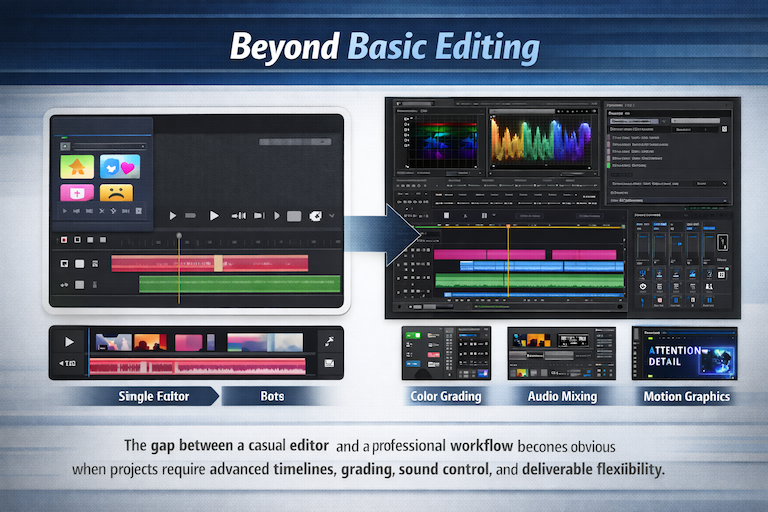
Premiere Pro is built for editors who work on long-form projects, branded content, and anything that needs to hold up to a professional standard. It handles multi-track timelines, advanced color grading with Lumetri Color, and audio mixing in a way CapCut simply cannot match. It connects directly to After Effects for motion graphics, and the export options cover everything from social formats to broadcast specs. The subscription cost is real, but so is the professional ceiling you get in return. If you work with clients or plan to build a career in editing, this is where most professionals end up.
2. DaVinci Resolve
A full post-production suite, free to use at a professional level.
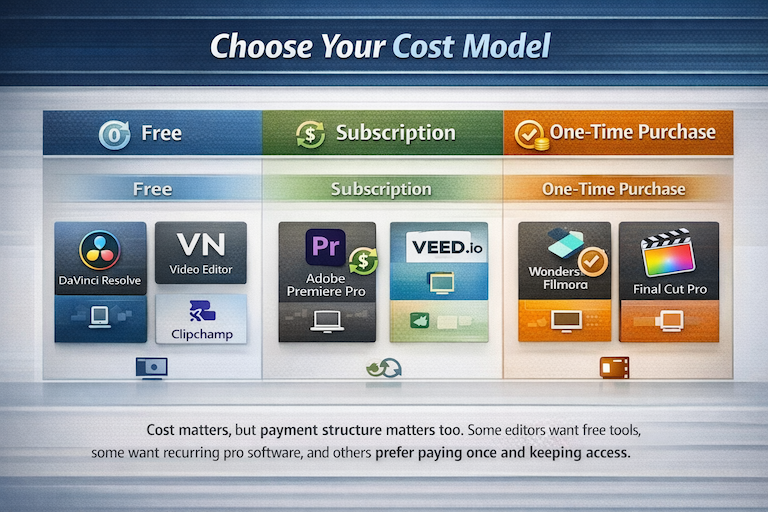
DaVinci Resolve handles editing, color grading, audio post-production, and visual effects in one application. The free version exports in 4K with no watermark and no time limit, which is rare at this price point. It takes longer to learn than CapCut the interface is dense, and the audio tools require patience. But once you find your rhythm, it covers the full pipeline without forcing you into a subscription. Version 20 added AI-assisted tools including automatic timeline building from scripts and animated subtitles that follow speech. For editors ready to invest time in a tool that grows with them, this is the most capable free option available.
3. Final Cut Pro
Apple's professional editor, built specifically for Mac performance.
Final Cut Pro costs $300 as a one-time purchase, and that's the end of the payments. It runs fast on Apple hardware because it's built for it large files, multicam sequences, and effects-heavy timelines don't lag the way they might on cross-platform software. The magnetic timeline feels strange coming from a traditional NLE, but most editors who switch to it don't go back. It doesn't run on Windows, so it only makes sense if you're already working in the Apple ecosystem. For Mac-based editors who want a professional tool without ongoing fees, it's a clean choice.
4. Wondershare Filmora
A desktop editor that sits between beginner-friendly and genuinely capable.
Filmora is the closest thing to CapCut on desktop. If you know your way around CapCut's timeline, you'll move through Filmora in minutes. It includes motion tracking, speed ramping, color grading with preset LUTs, and a large effects library all accessible without needing to dig through menus. There is a perpetual license option, meaning you pay once and keep the software. The AI tools run on a credit system, which adds up fast if you use them often, so it's worth factoring that in before committing to a plan.
5. VEED.io
A browser-based editor built around captions, collaboration, and fast turnaround.
VEED runs entirely in a browser, so there's no installation and no local storage required. It's particularly useful for teams that share projects and need accurate subtitles quickly the auto-caption tool handles multiple languages and syncs reliably. It won't replace a desktop editor for complex, effects-heavy work, but for agencies and educators producing content that needs captions and fast review cycles, it handles that job well. The free plan adds a watermark; paid plans start at a reasonable monthly cost and remove it.
6. Lightworks
A precision desktop editor used in professional post-production.
Lightworks has been used in film editing for decades and shows it. The trimming tools feel sharp, playback stays stable with large files, and the color tools give you fine-grained control over individual frames. It runs on Windows, macOS, and Linux. The free version has export restrictions, including resolution limits and the requirement to use the company's own sharing platform. The paid version removes those limits and is priced at a reasonable annual cost. Editors who care about precision over visual flair tend to find it worth the adjustment period.
7. Clipchamp
A lightweight option built into Windows for basic editing tasks.
Clipchamp comes pre-installed on Windows 11 and works through a browser on other systems. It covers the basics trimming, transitions, text overlays, screen recording without much setup. It's not built for complex projects, and it doesn't offer the depth of a full NLE. But for editors who need to put together a clean, straightforward video quickly and don't want to install extra software, it gets the job done. Microsoft 365 subscribers get additional features included in their existing plan.
8. InShot
A mobile editor for social content that works quickly on a phone.
InShot is built for vertical video and short-form content on TikTok, Instagram, and similar platforms. It handles basic cuts, text, transitions, speed adjustments, and audio in a layout that's easy to navigate on a small screen. It won't do multicam editing or advanced color work, but that's not what it's for. If you need to take raw footage from your phone and turn it into something post-worthy in a short amount of time, InShot does that without friction. The free version includes ads and a watermark; the paid version removes both.
9. VN Video Editor
A free mobile editor with no watermark and more depth than most expect.
VN is often overlooked because it doesn't advertise heavily, but it's one of the more capable free mobile editors available. It supports multi-track editing, keyframe animation, and flexible export settings without adding a watermark to the output. The interface is clean, and controls for speed, audio, and filters are easy to reach. Compared to CapCut's free tier, VN gives you more functionality without the upsell. It's a practical choice for creators who want a no-cost mobile tool that doesn't feel stripped down.
10. Camtasia
A desktop editor built around screen recording and tutorial-style content.
Camtasia combines screen recording with a full video editor, making it useful for anyone producing course content, software demos, or instructional videos. It records your screen and camera on separate tracks, which makes it easy to edit each one without affecting the other. It includes callouts, annotations, and customisable transitions that fit that style of content well. It works on both Windows and Mac, and a free trial is available with a watermark. For editors whose work is primarily tutorial or training content, it removes a lot of the friction that comes with using a general-purpose editor for that job.
Use Canva's Video Editor editing Software
Canva Video Editor
A browser-based editing software that covers video, graphics, and social content in one place.
Canva sits comfortably among the better free CapCut alternatives for editors who work across video and design. It runs in a browser, so there's no software to install, and the free tier gives you access to a solid set of editing features trimming, transitions, text overlays, and a large stock media library. It works on a freemium subscription model, meaning the free plan is genuinely usable, while the paid tier adds brand kits, premium assets, and more export options.
Editors who use Adobe Express will find Canva takes a similar approach template-driven, fast to pick up, and focused on polished output without a steep learning curve. It won't replace dedicated editing apps like Splice for audio-heavy or effects-heavy work, but for producing clean social content, presentations, or short branded videos, it handles that job without much friction.
Closing Thoughts
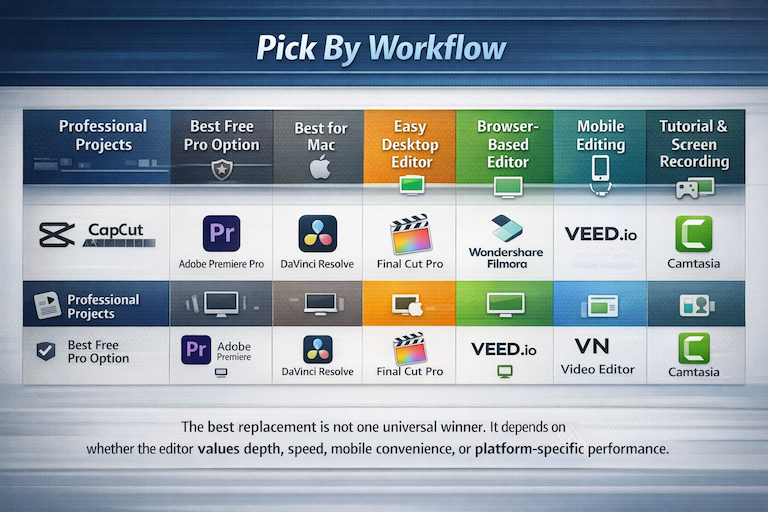
The right replacement depends on what you're actually doing. Premiere Pro and DaVinci Resolve are the strongest options for editors working on professional or complex projects. Final Cut Pro is worth the price if you're on Mac. Filmora is a practical middle ground for desktop users who want more than CapCut without a steep learning curve. And if you mostly edit on a phone, VN or InShot will cover most of what CapCut offered without the data concerns that come with it.